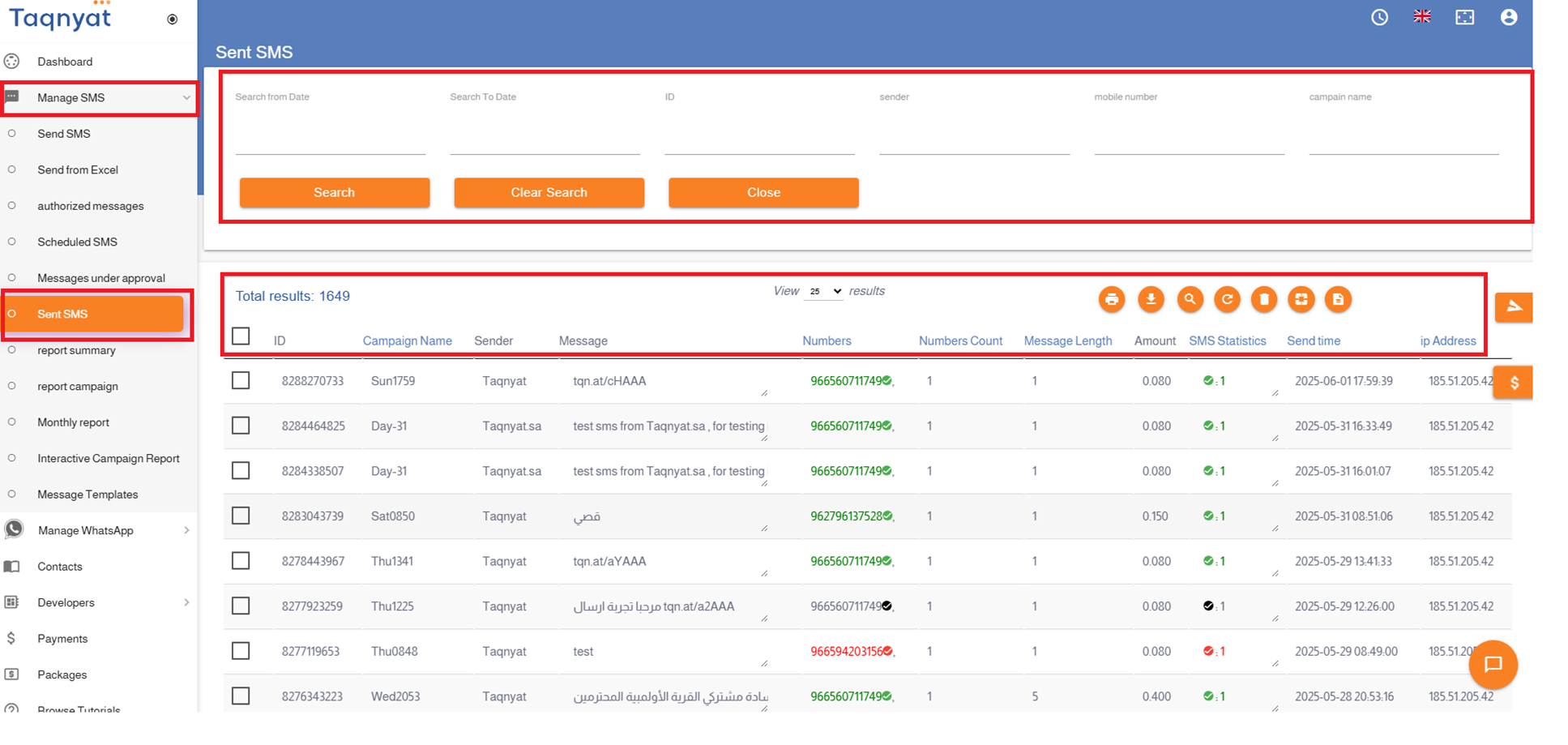
Click on the Search icon, specify the desired date range, then click Search to view the messages sent during that period
Message Delivery Status Colors:
• Green : The message was sent and a delivery report was received from the telecom provider confirming it was delivered.
• Red : The message was sent and a delivery report was received indicating it was not delivered
• Black : The message was sent, but no delivery report has been received yet. The status will be updated once the report is received from the telecom provider.
If a number appears in red, this indicates that the message was sent, but the telecom provider confirmed non-delivery. This can be due to one of the following reasons:
When the sender name is Transactional:
• The phone is disconnected or not in use.
• The phone is switched off or out of coverage.
2. When the sender name is Promotional:
• The phone is disconnected or not in use.
• The phone is switched off or out of coverage for a long time.
• The recipient has subscribed to a service that blocks promotional messages sent via the internet.
To check the exact reason for non-delivery to a specific number, please contact Technical Support.
To cancel the promotional message blocking service, the recipient must send a normal SMS to the service number. Below are the instructions for each telecom provider in Saudi Arabia:
• STC users : Send a message with the code 3322 to 900
• Mobily users : Send the word (Continue) to 604445
• Zain users : Send the word (Activate) to 705000
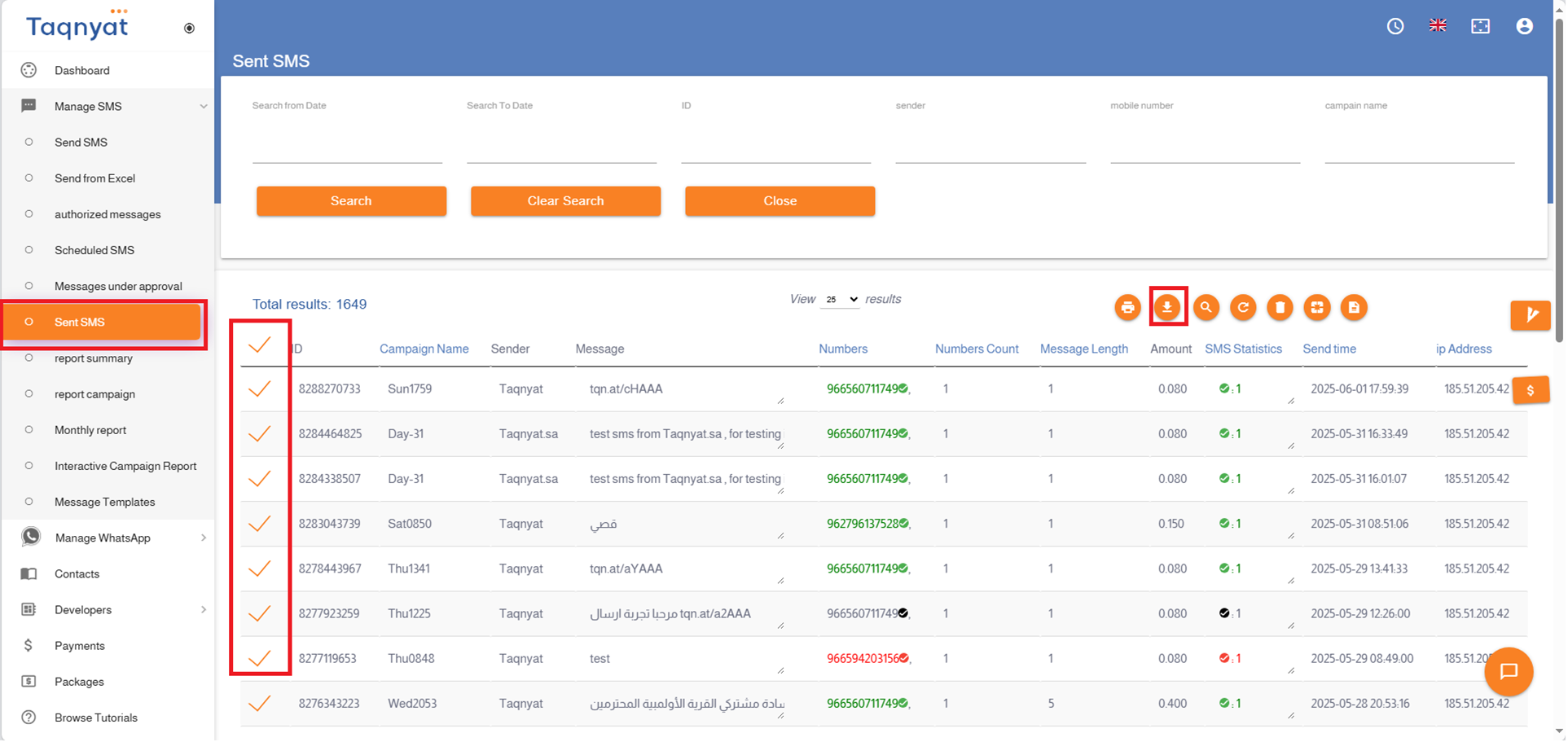
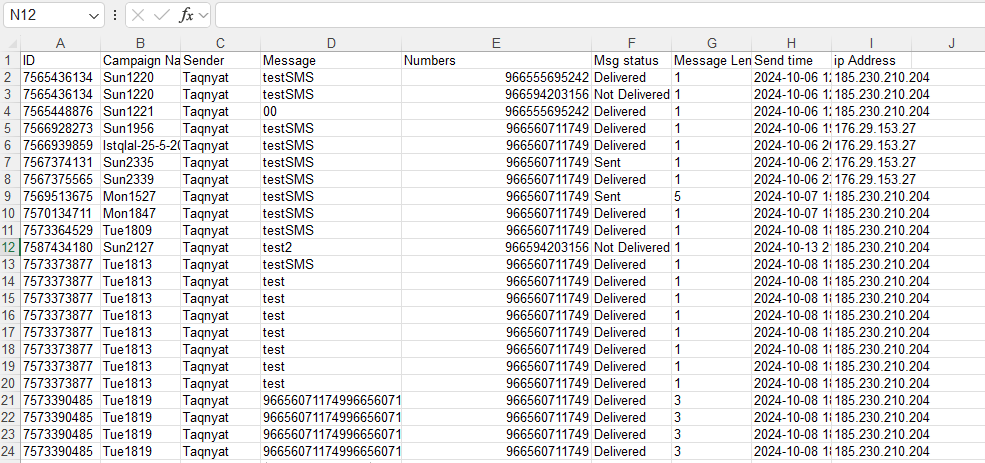
To export a detailed report of sent messages:
Select the messages you want to export.
Click on the Export icon.
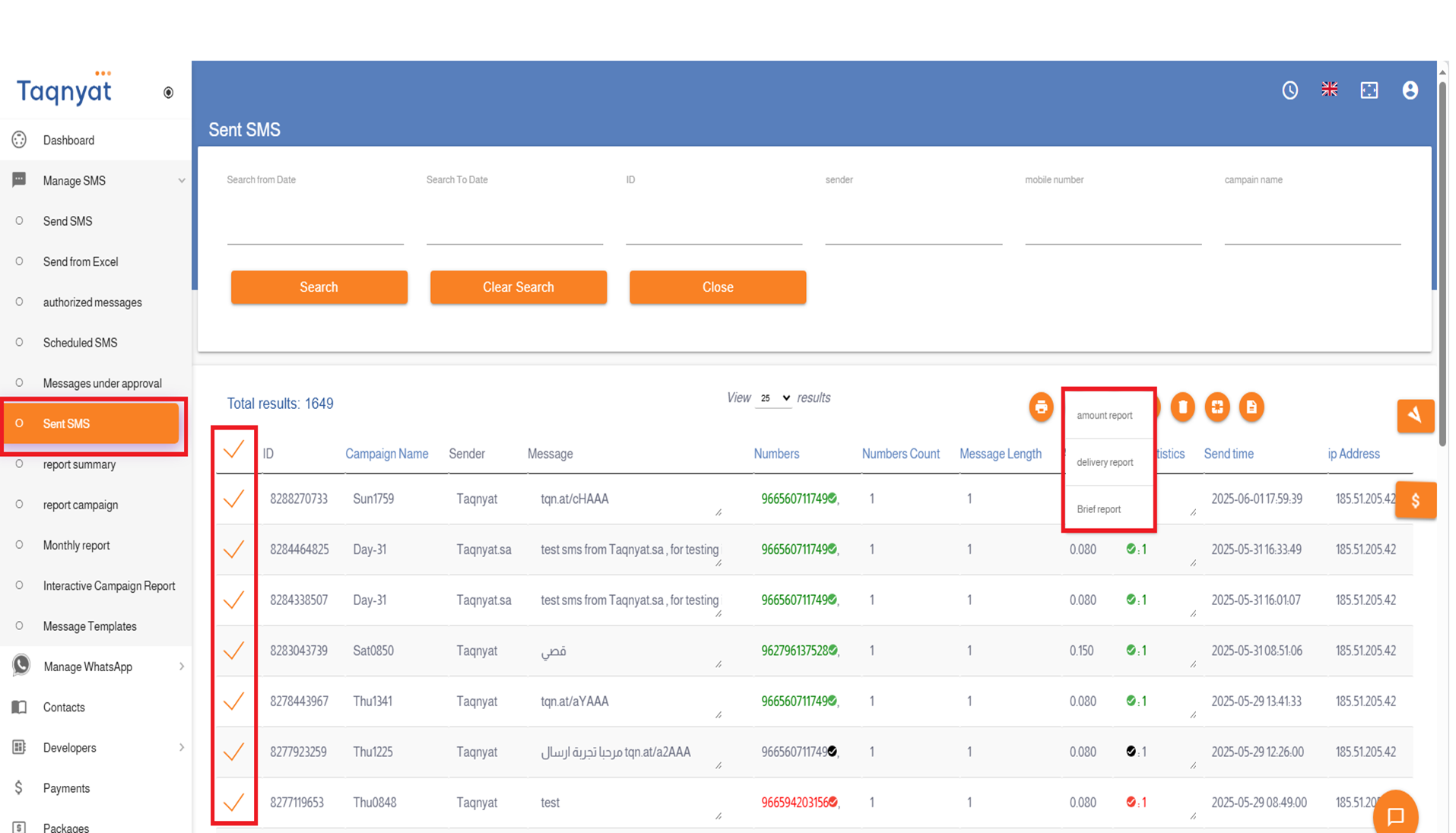
Choose the type of export: Credit Report or Delivery Report
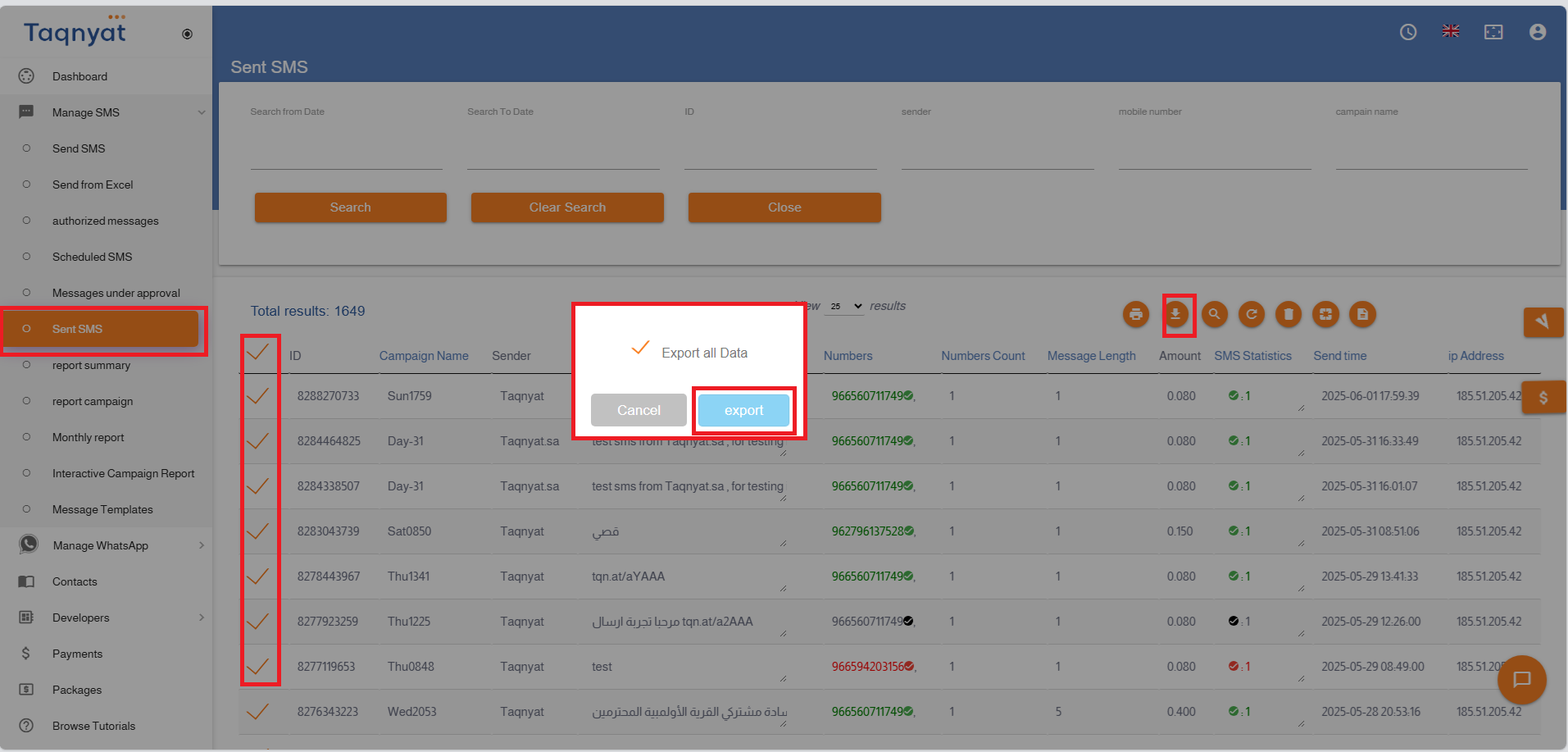
Enable the option Export all information in this table, then click Export to complete the process
The report will be downloaded as an Excel file
Reference Image:
Report Summary
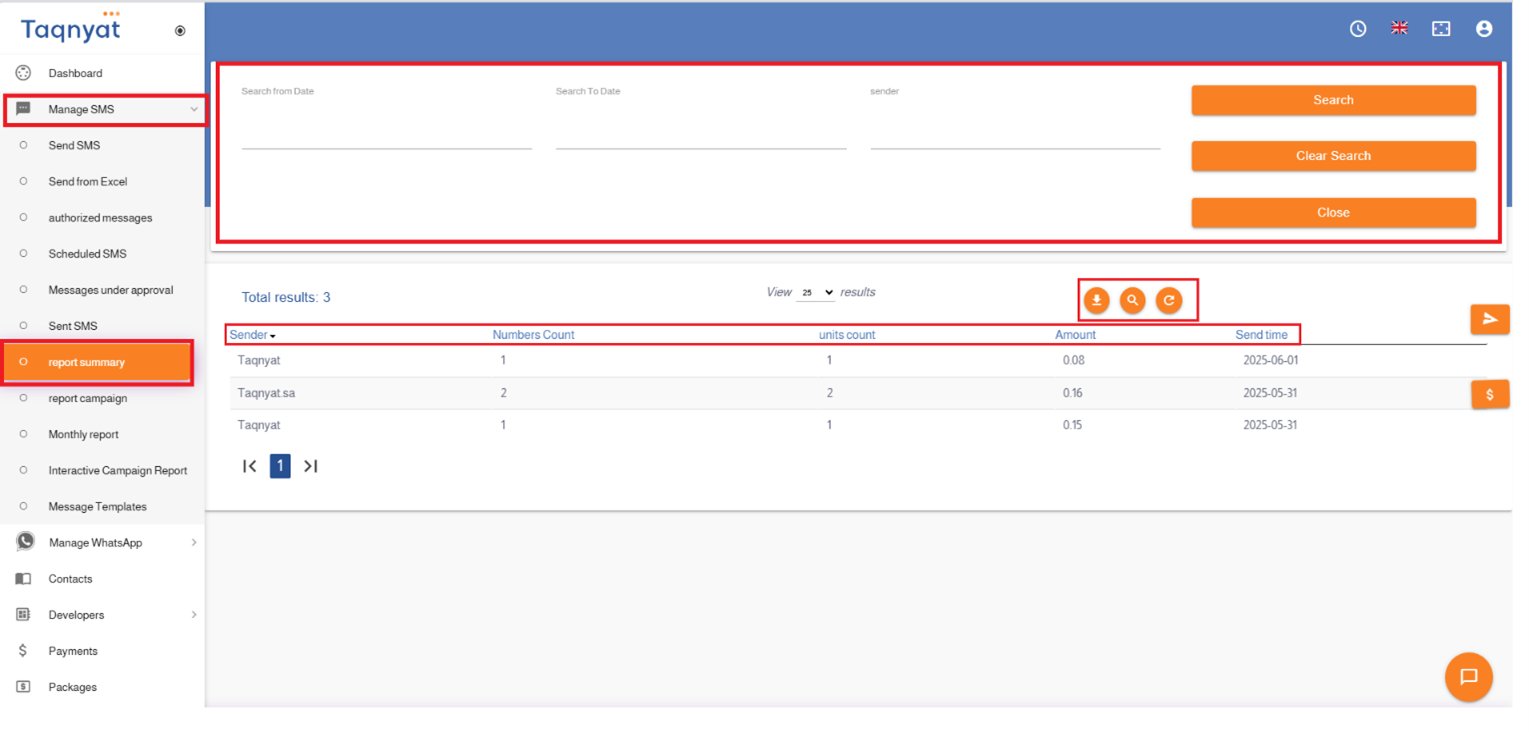
Through the "Report Summary" section, you can view a cumulative report that shows the number of recipients reached by a specific sender on a particular day. This report allows you to determine the sending volume associated with each sender name.
To access the "Report Summary" page, follow these steps:
Click the search icon and select the desired date range to view the message archive
You can export the report as an Excel file by selecting the messages and clicking the export icon
Please note: In accordance with the agreement, we retain the message archive for only 6 months. We recommend exporting the archive from your account regularly and keeping a backup copy.
Reference Image: :
Report Campaign
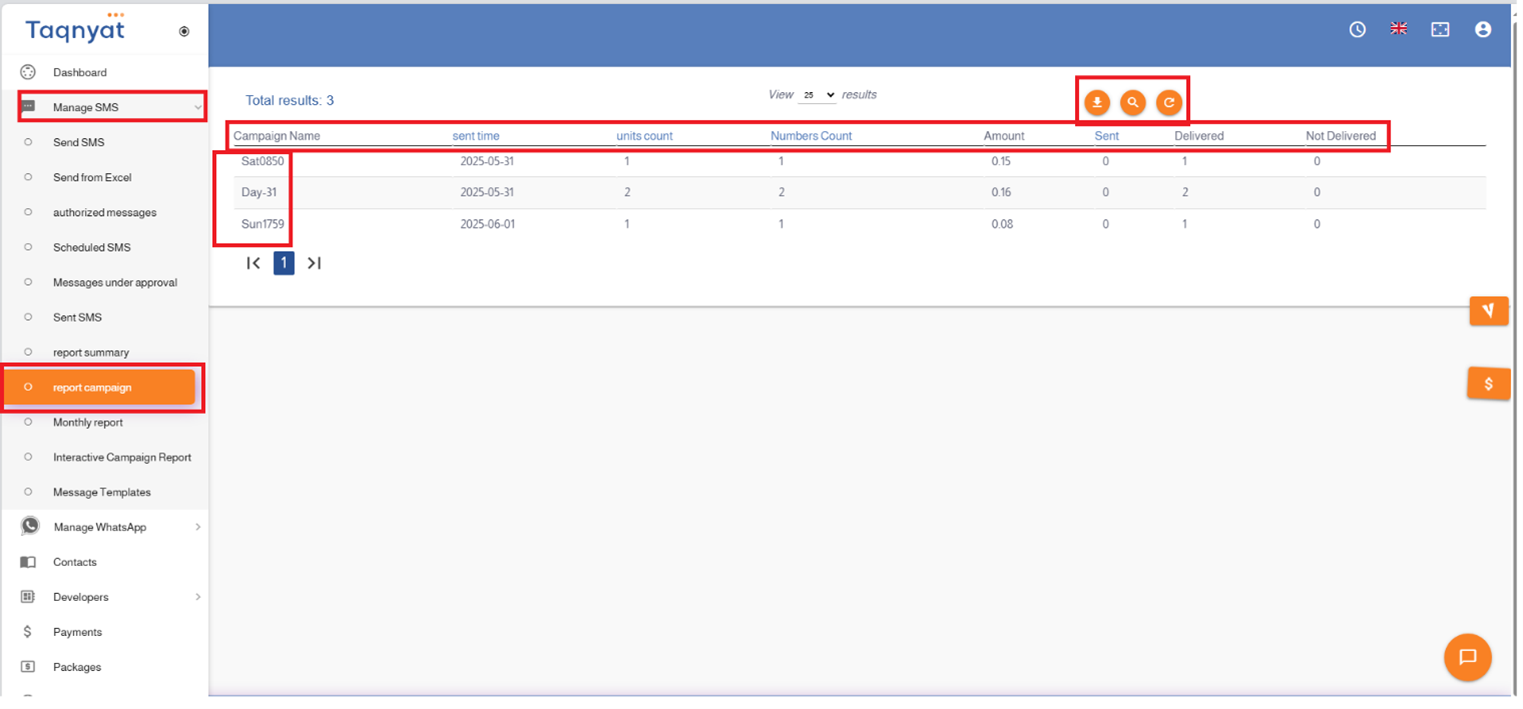
Through the "Campaign Report" section, you can view a summary of the sent messages based on the campaign name specified during sending.
To access the "Campaign Report" page, follow these steps:
Click the Search icon and select the desired date range to view the message archive
You can export the report as an Excel file by selecting the messages and clicking the Export icon
Note:
In accordance with our service agreement, message archives are retained for a maximum of 6 months only. Therefore, we recommend exporting and saving a copy of your message archive regularly.
Reference Image:
Monthly Report
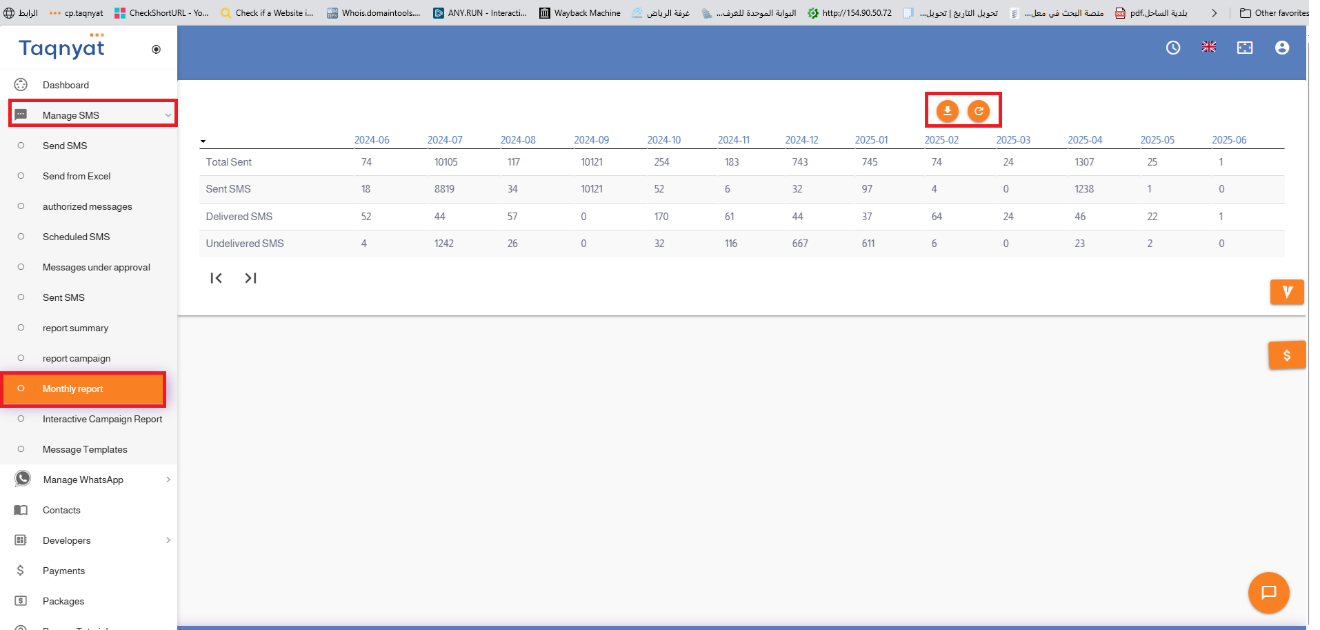
To access the Monthly Report section, please follow these steps:
You can export the report as an Excel file by selecting the messages and clicking the Export icon.
Note:
In accordance with our service agreement, message archives are retained for 6 months only. We recommend exporting and saving your message archive regularly.
Reference Image:
Interactive Campaign Report
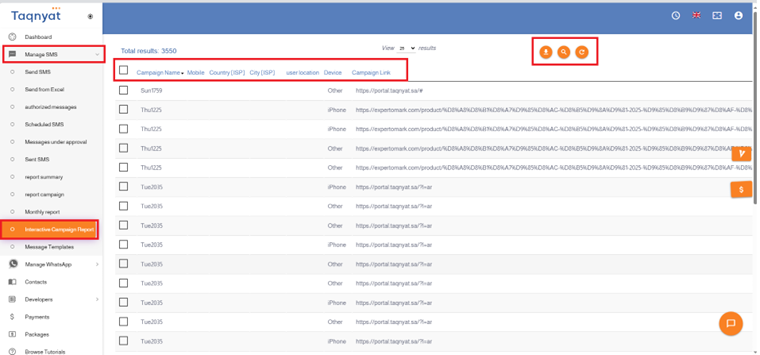
Please note that the Interactive Campaign Report is linked to the Short Link and Interactive Link services. It allows you to view statistics of recipients who clicked on the short or interactive link, including their geographic location and the date of the click.
To access the Interactive Campaign Report, follow these steps: