Add Numbers
There are several ways to add numbers to your account, but first, you need to create the group where you want to store the numbers.
To add a new group, please follow these steps:
- Log in to your account via the following link https://portal.taqnyat.sa/
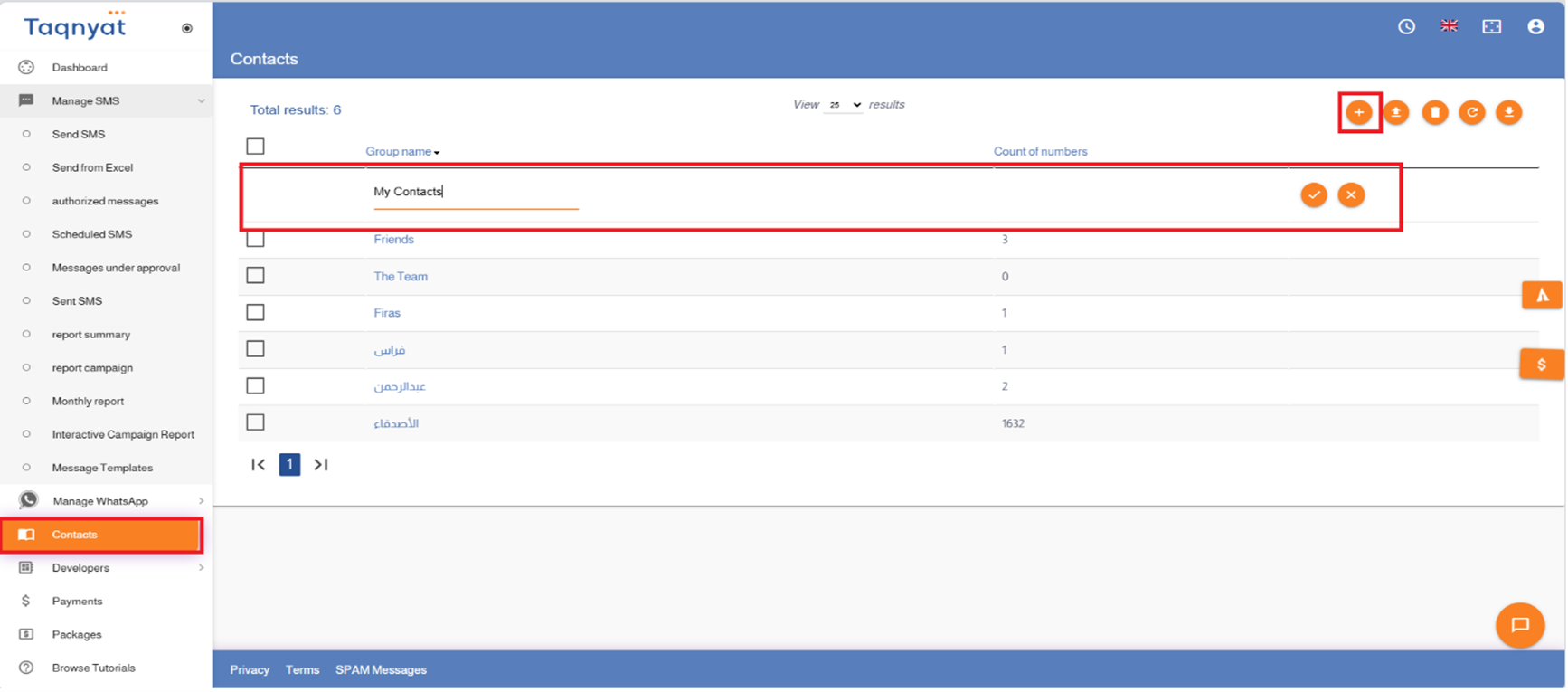
- Select Contacts
- Click the + icon
- Enter the group name, then click the checkmark icon to complete the process
- Click on the group name and start adding numbers
Reference Image:
After adding the group, you can start adding numbers to the new group by clicking on the group name and selecting the method that suits you best.
First: Add numbers and names manually
To add numbers and names manually, please follow these steps:
- Log in to your account via the following link: https://portal.taqnyat.sa/
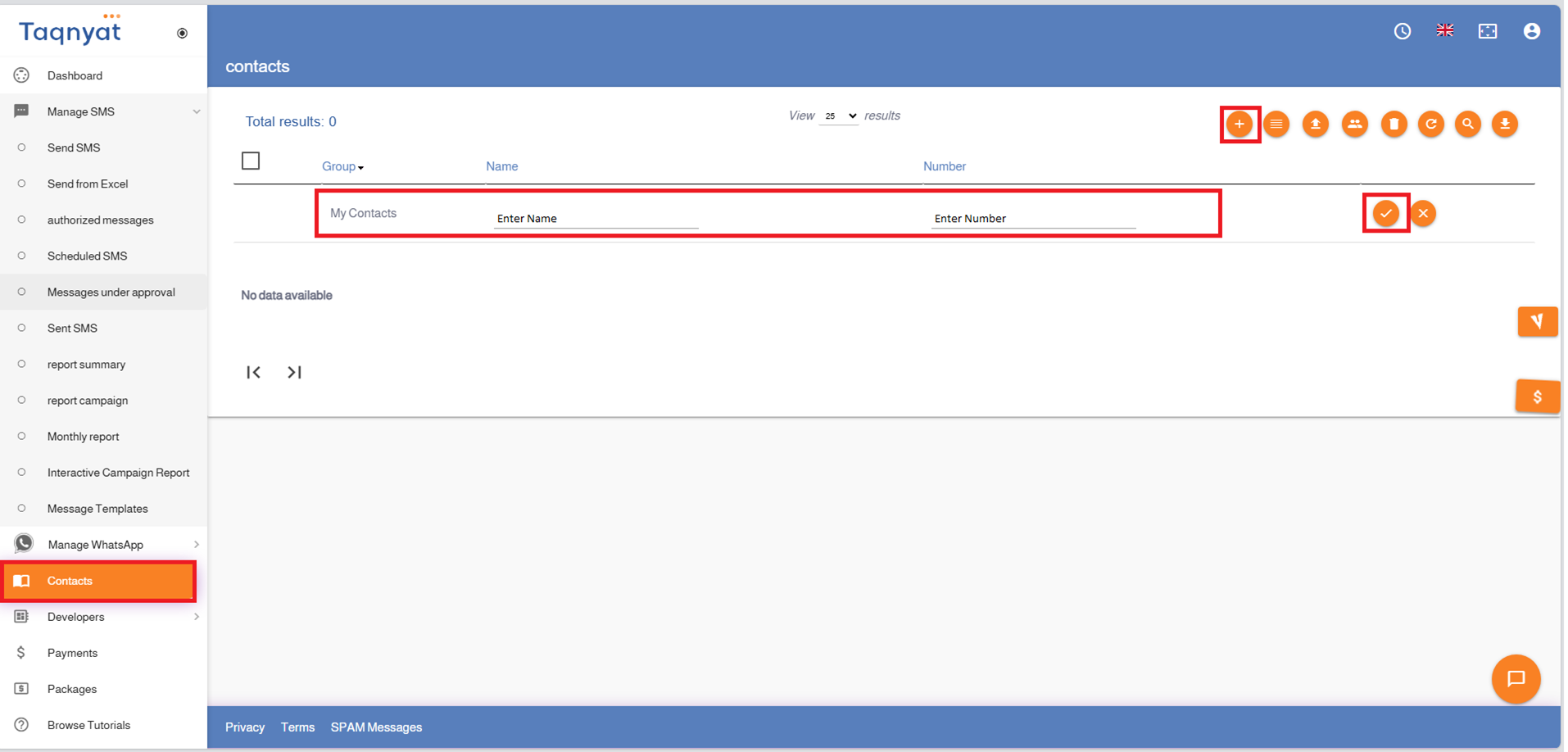
- Select Contacts
- Click on the group you want to add names and numbers to
- Click the + icon to add a new name and number
- Enter the name and number
- Click the checkmark icon to confirm the addition
Reference Image:
Second: Add a batch of numbers at once using the direct method
To add numbers and names using the direct method, please follow these steps:
- Log in to your account via the following link https://portal.taqnyat.sa/
- Select Contacts
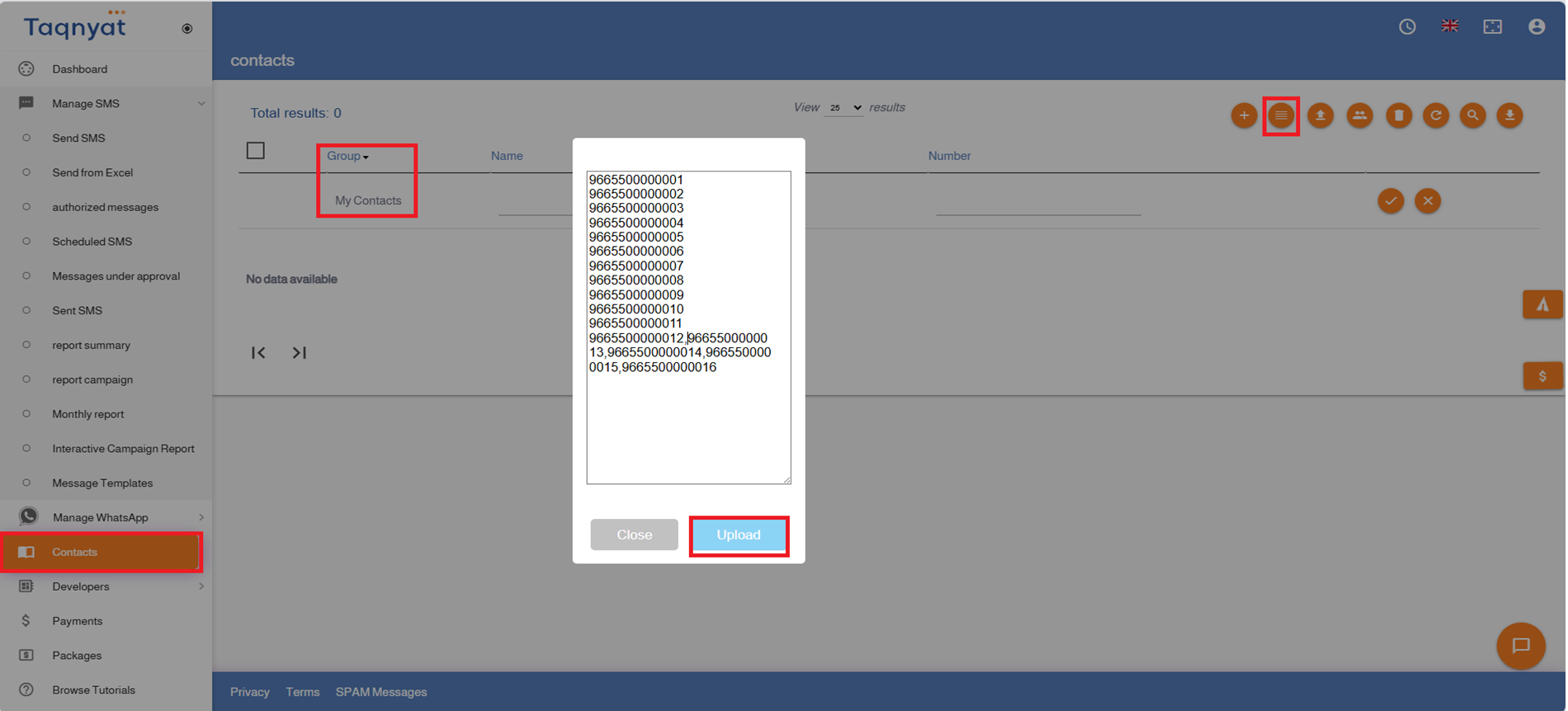
- Click on the group where you want to add numbers
- Click the "Add Numbers Directly" icon, which looks like parallel columns
- Enter the numbers in the Numbers field, either vertically or horizontally separated by the Arabic letter as a delimiter
- Click Upload to add the numbers to your account
Reference Image:
Third: Add numbers and names using an Excel file
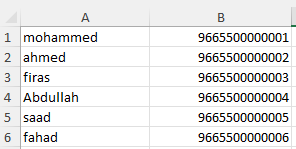
If you have numbers only or numbers with names in an Excel file and want to store them in your account, you need to prepare the Excel file to match our accepted format. Please make the following adjustments to your Excel file:
- Names must be placed in Column A. If there are no names, you can leave Column A empty.
- Numbers must be placed in Column B.
- Numbers must be written in the Saudi format starting with 966, without any extra leading zeros
Reference Image:
After preparing the file, please follow these steps to upload the numbers to your account:
- Log in to your account via the following link: https://portal.taqnyat.sa/
- Select Contacts
- Click on the group where you want to upload the numbers file
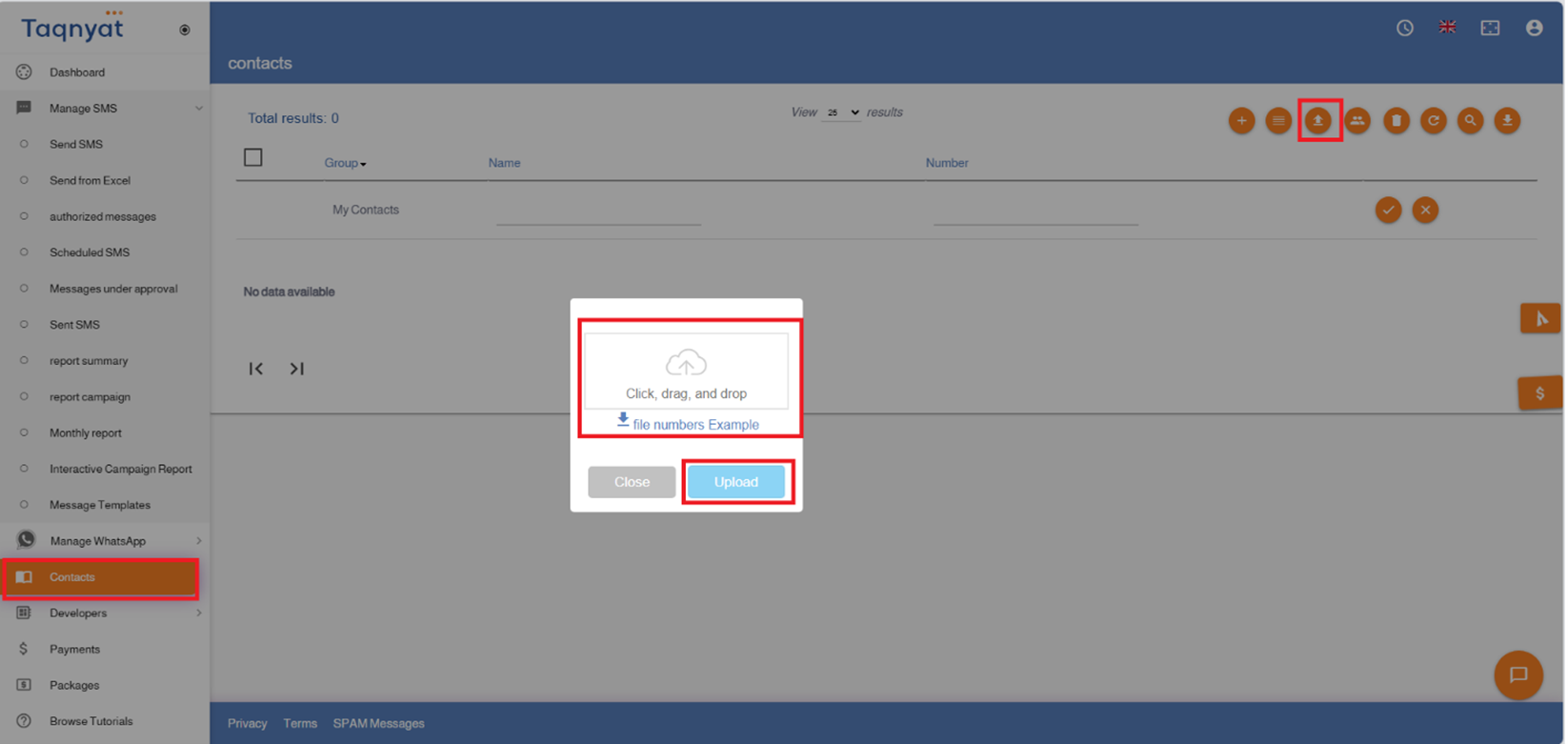
- Click the Import icon, which looks like an upward arrow
- Upload the file in the designated area
- Click Upload to add the numbers to your account
Reference Image :
If the numbers in your Excel file appear as symbols like 9.66543E+11, you can follow these steps to display the numbers correctly:
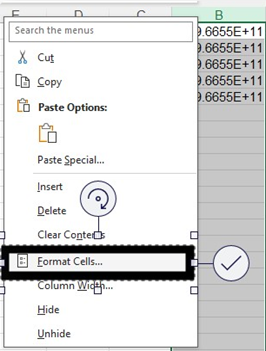
- Select the column containing the numbers
- Right-click on the selected column.
- Choose Format Cells
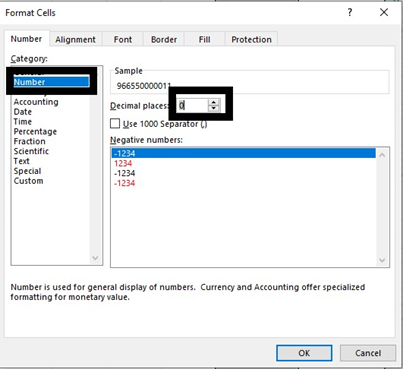
- Select Number
- Change the decimal places value on the right to 0
- Click OK to apply the changes.
Reference Image:
If the numbers in your Excel file are not in the international format and start with the digit 5, you can follow these steps to add the country code prefix:
- Select the column containing the numbers.
- Right-click on the selected column.
- Choose Format Cells.
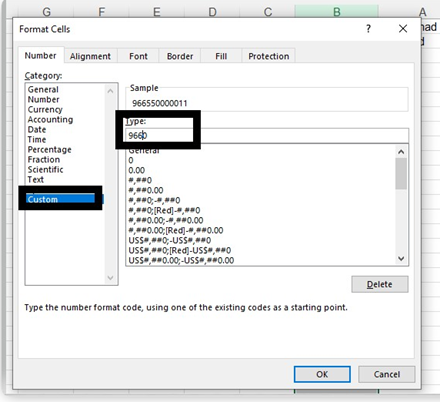
- Select Custom
- Replace the existing format on the right with 9660
- Click OK to apply the changes.
Reference Image: