How do I create my account?
There are several ways to create your account:
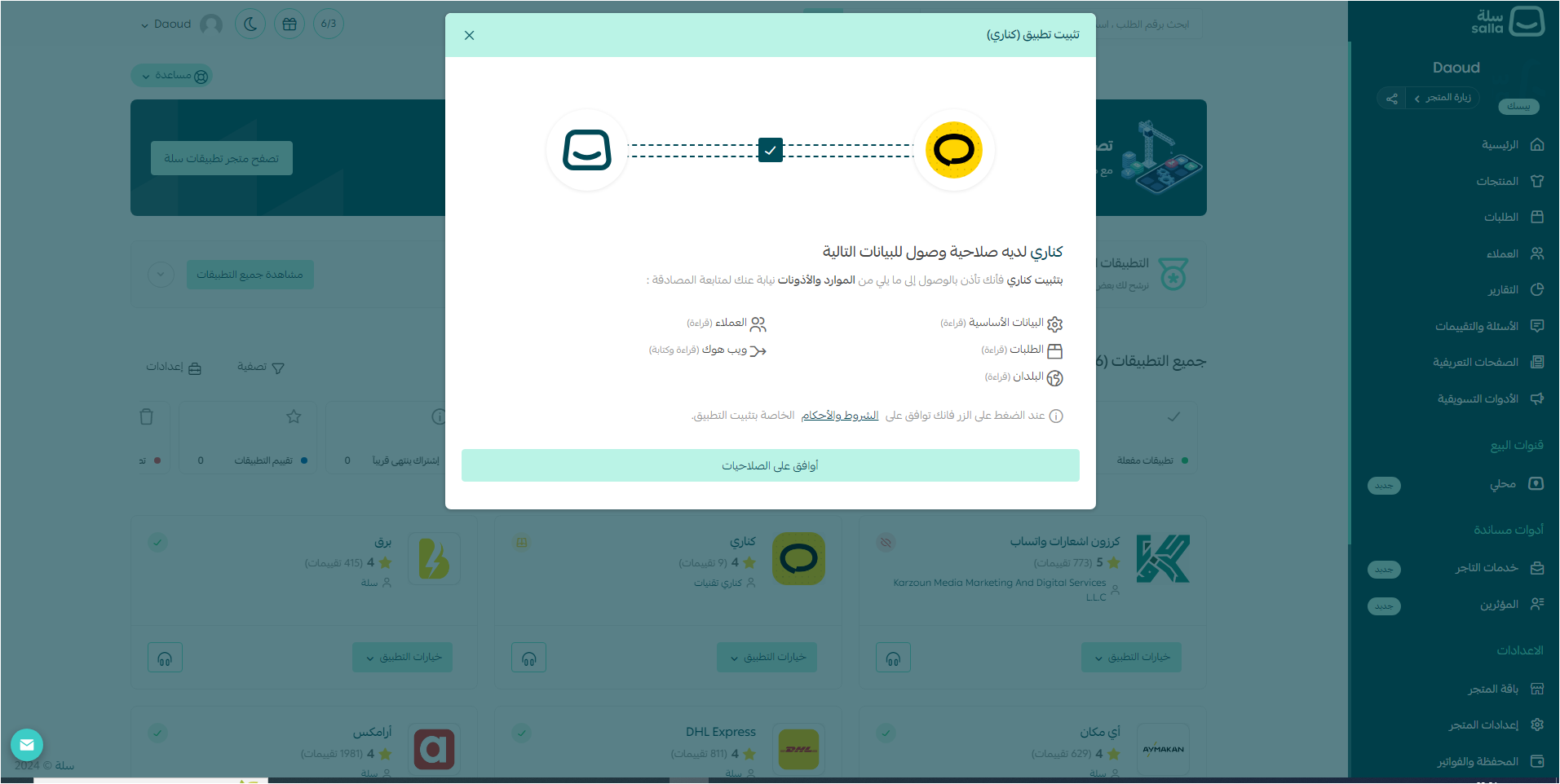
You can create your account through your Salla account by activating the Canary application available on the Salla platform through the following steps:
- Log in to your Salla account
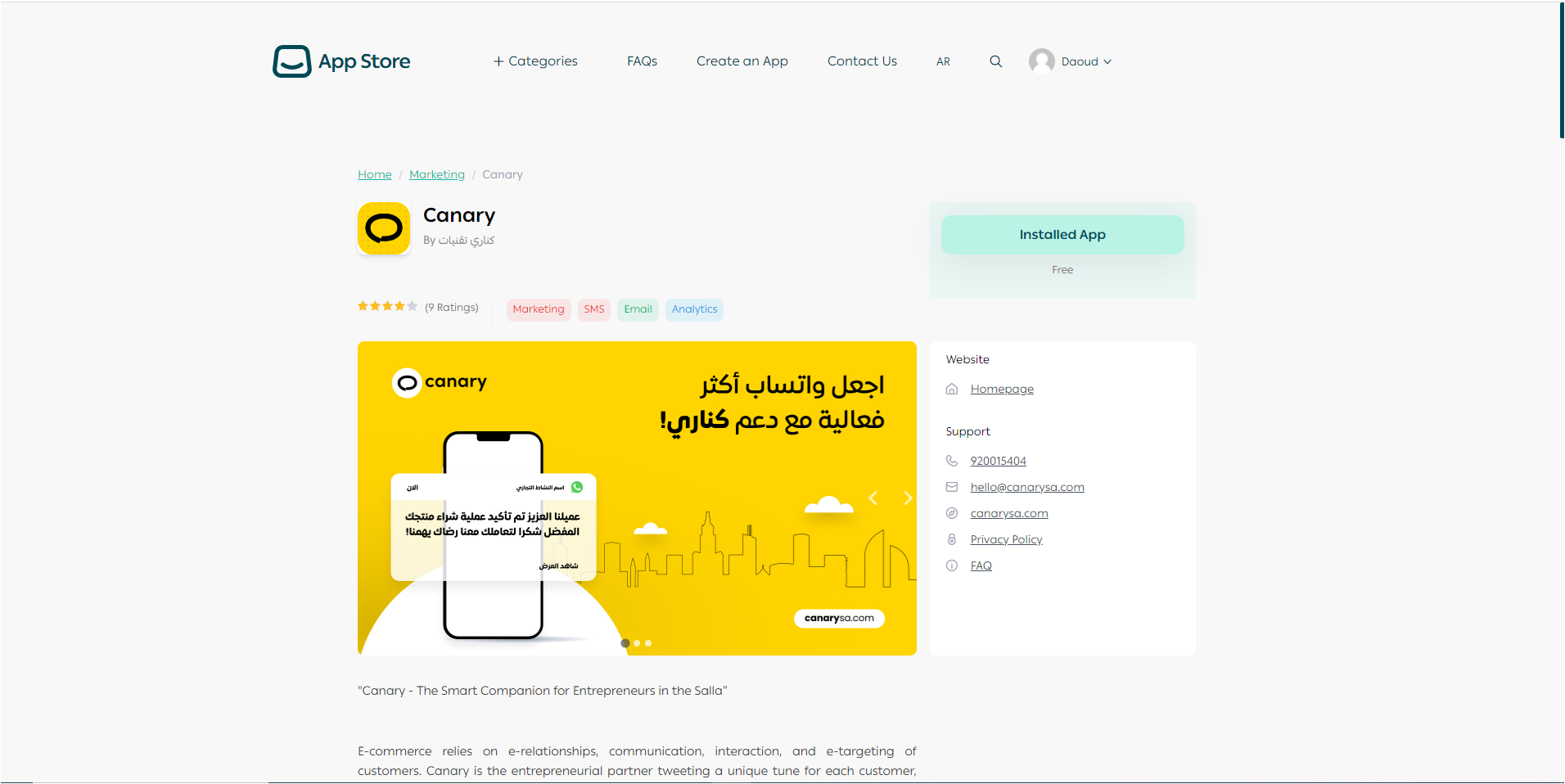
- 2. Search for the Canary application in the Salla platform's app store
- Choose the plan that meets your needs and install it.
- The permissions needed by Canary will be displayed. Click "Agree" to grant permissions, and the application will be installed automatically.
- Click on the activation link sent to your email or via SMS.
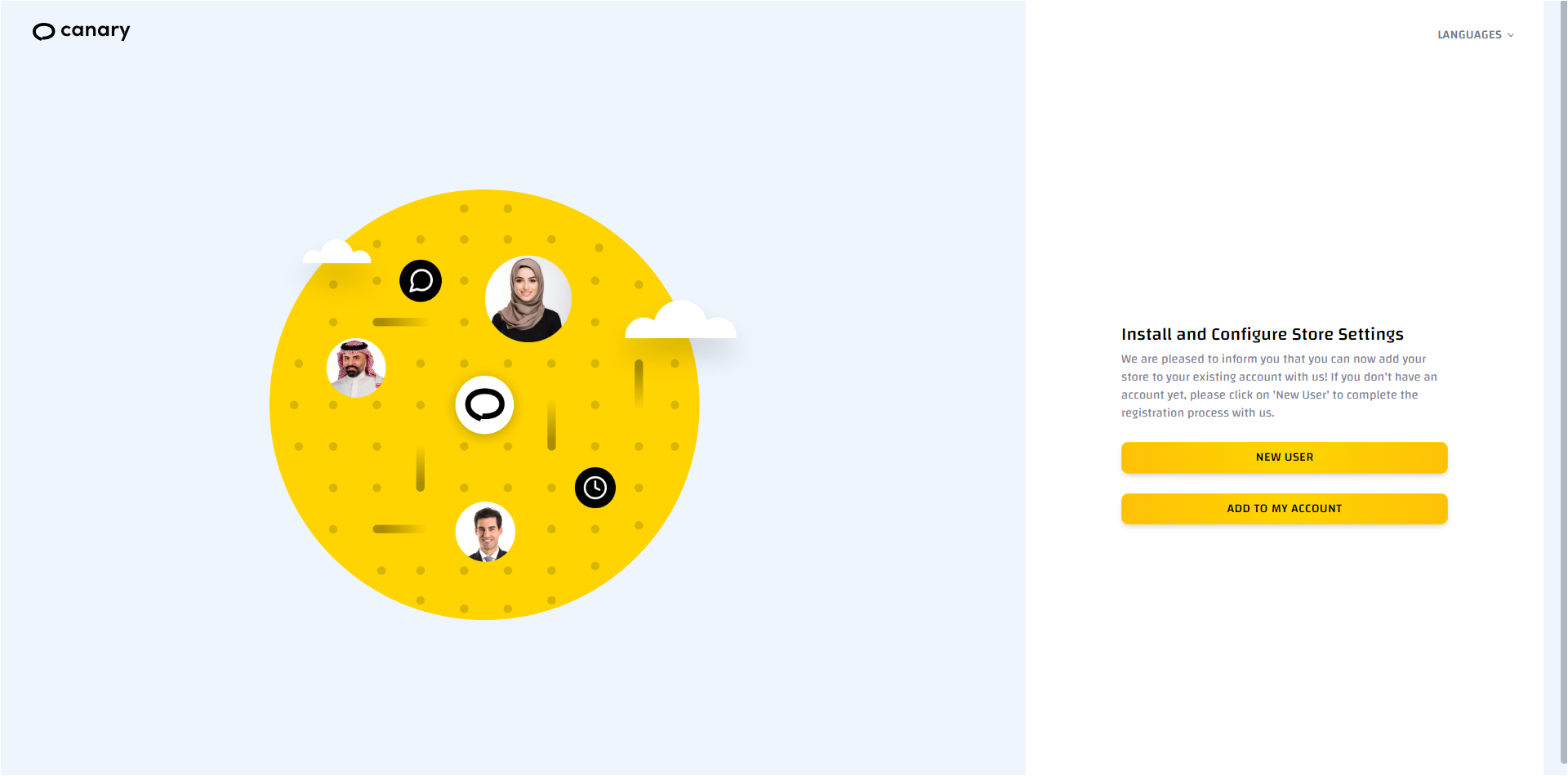
- The link will direct you to the account creation page.
- You will see two options: if you already have a Canary account, click "Add to my account"; if not, click "New user".
- If you click "Add to my account", you will be directed to the login page. Log in to add your store successfully
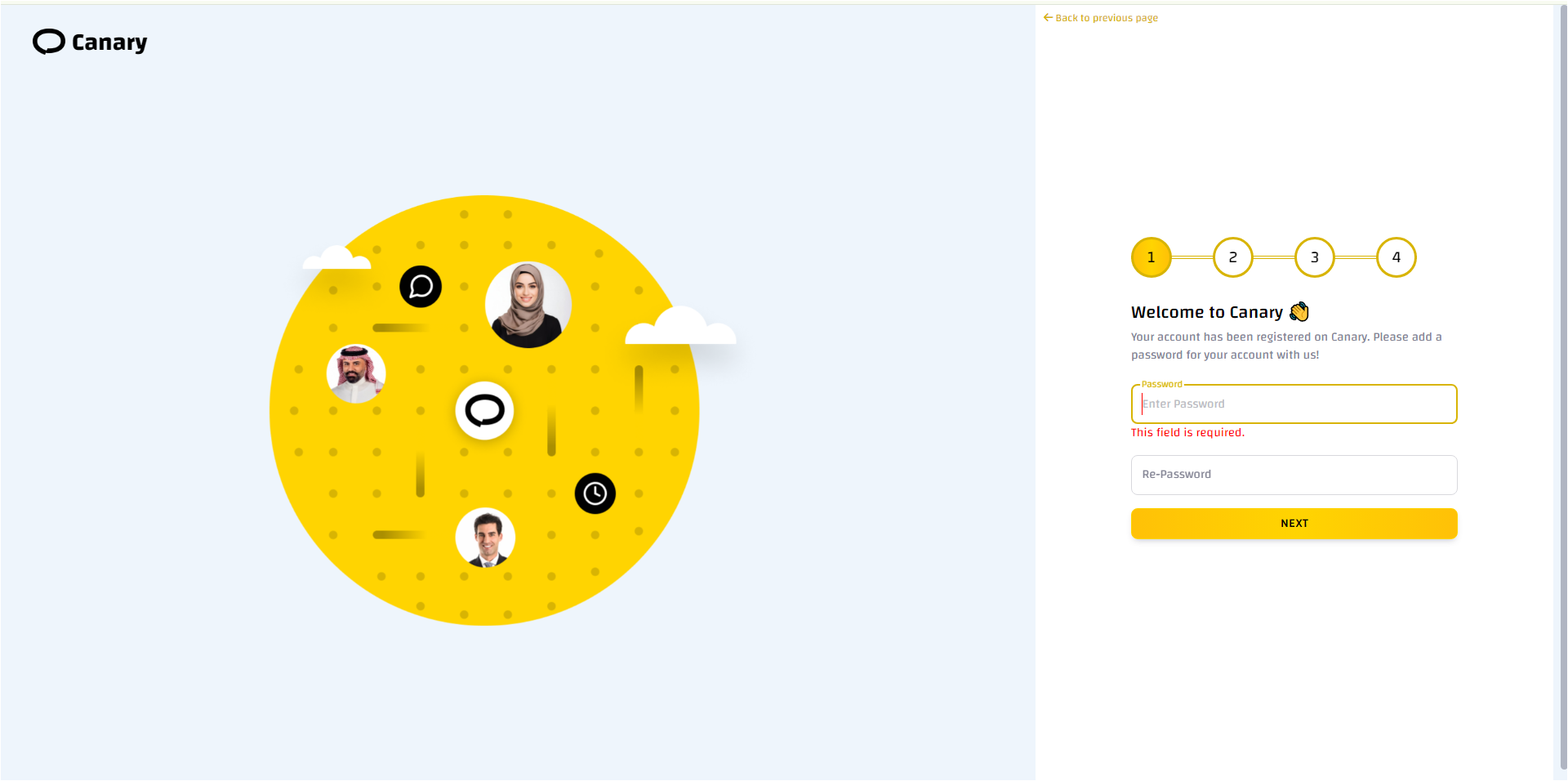
- If you click "New user", you will be directed to the password setup page. Create your password and click "Next". Make sure not to share it with anyone
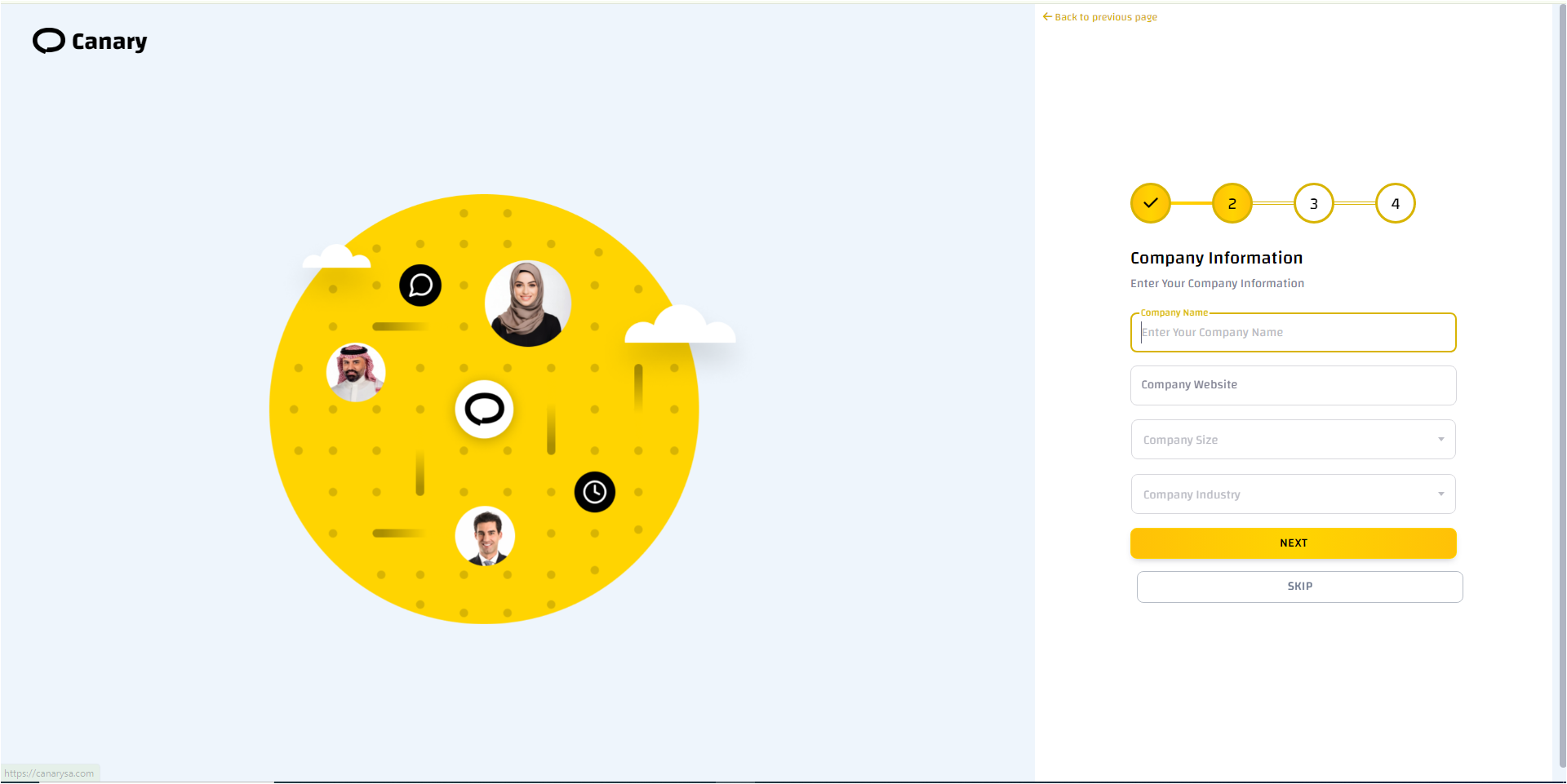
- Fill in your company details: company name, website, company size, and sector. You can skip this step if you prefer
- Choose the channels that suit you in collaboration with Canary partners: SMS, WhatsApp, WhatsApp Business, and email, then click "Next". You can skip this step for now if you prefer.
- After selecting the channels, fill in the inputs for each separately:
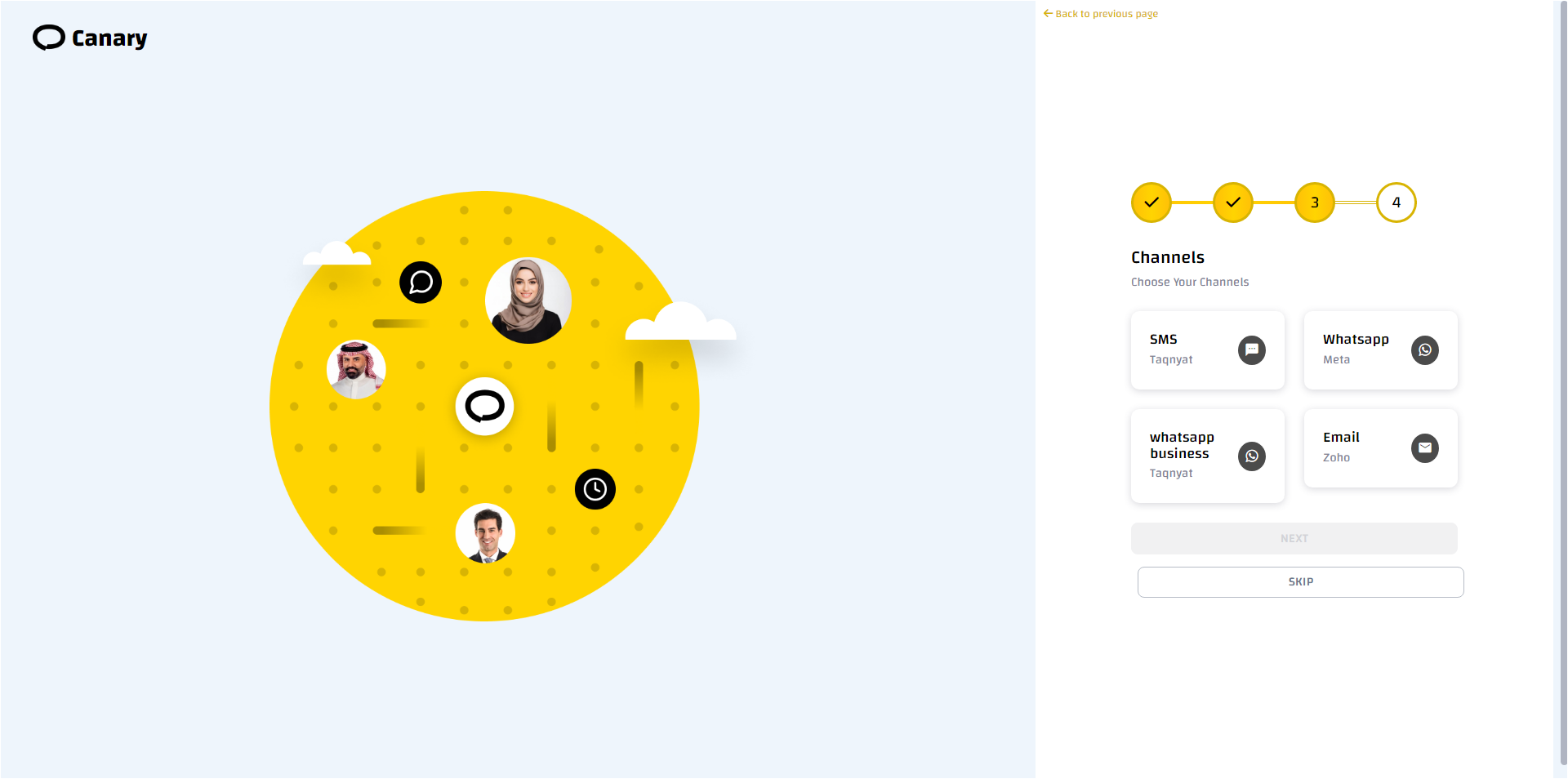
SMS with Taqnyat
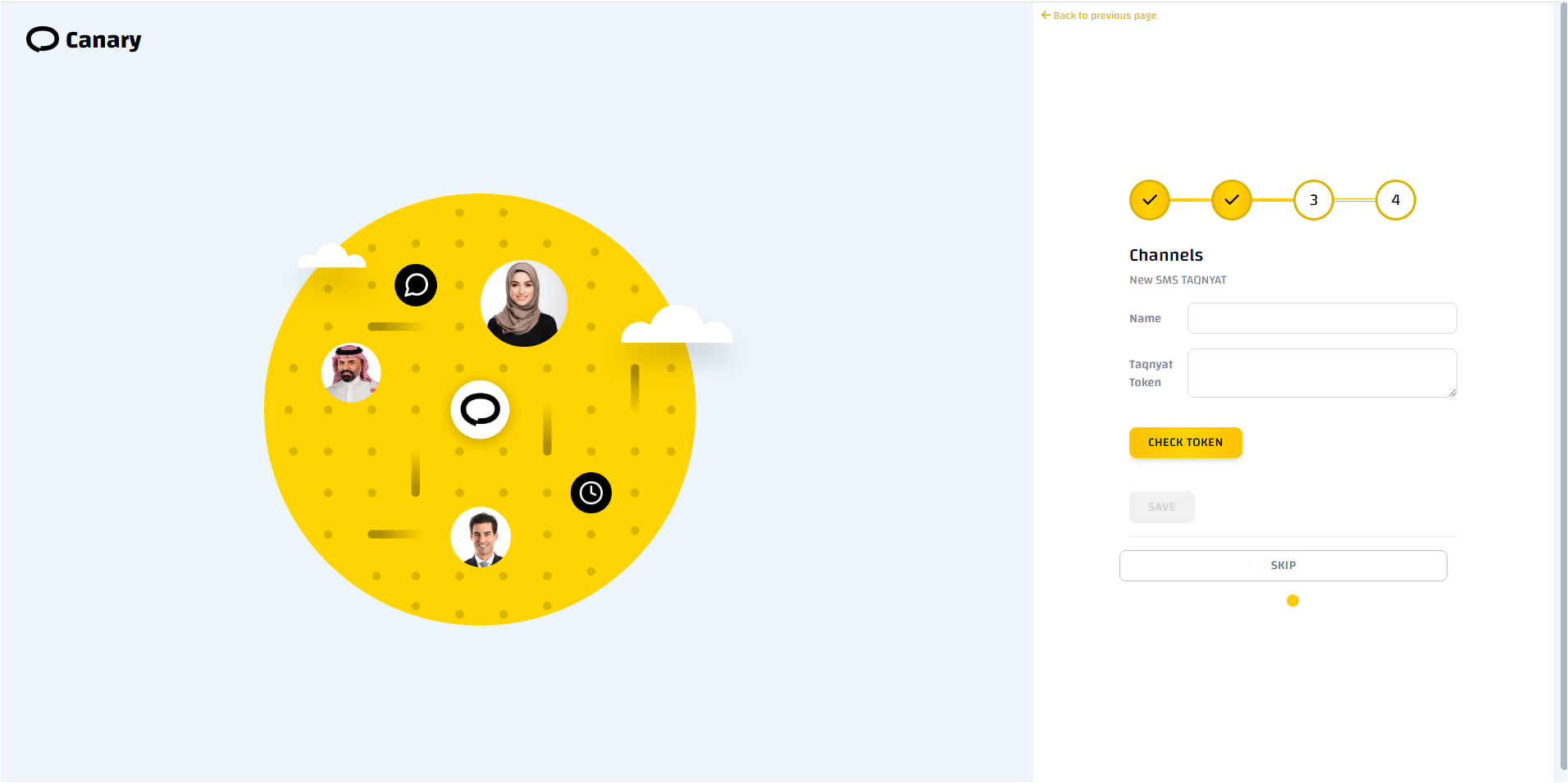
- Enter the channel name.
- Enter the token provided by the Taqnyat team.
- Verify the token by clicking "Check token". If correct, the "Save" button will be enabled.
- Click "Save".
WhatsApp with Meta:
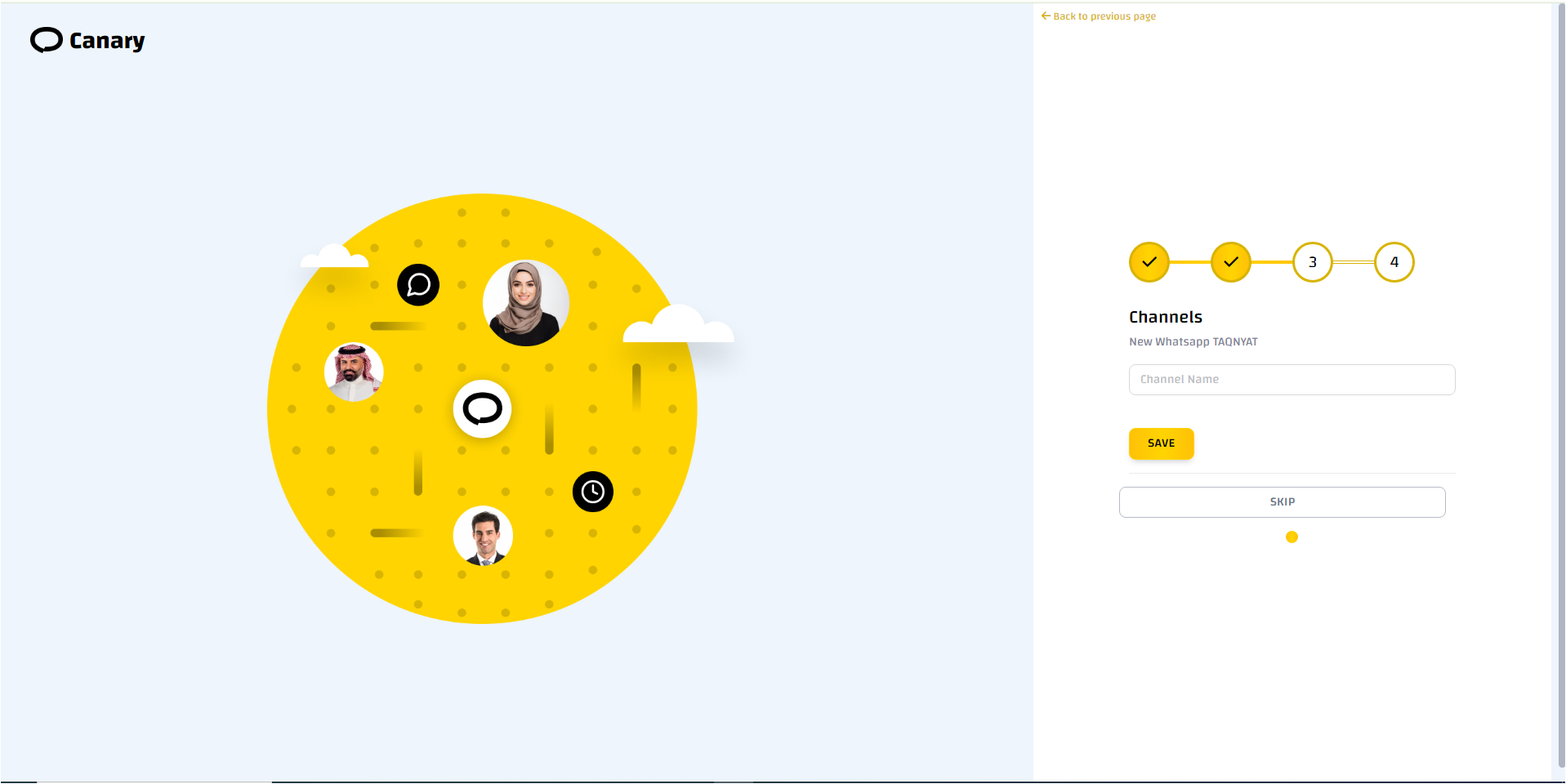
- Enter the channel name and click "Save".
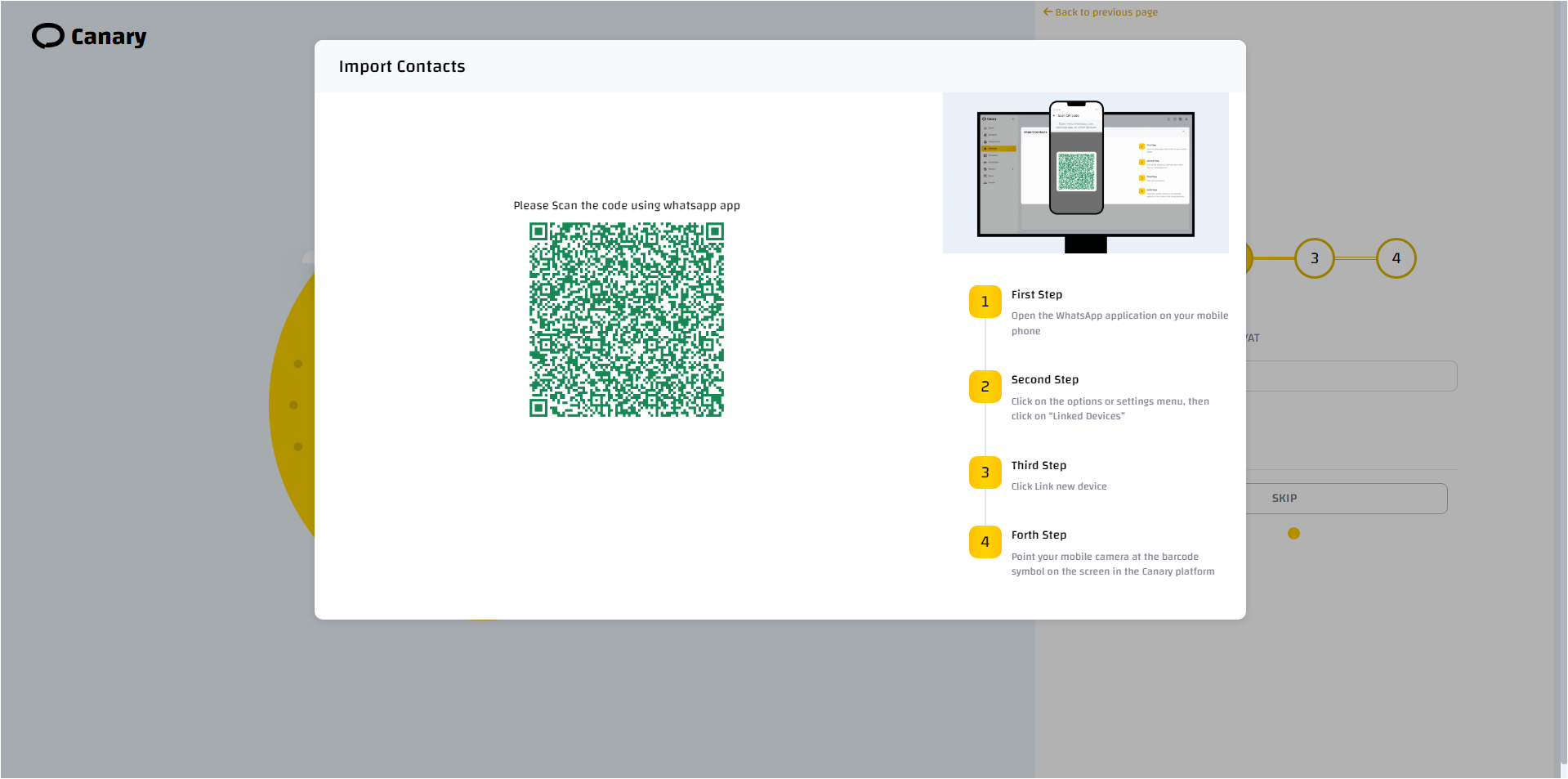
- A pop-up screen with a QR code will appear.
- Scan the QR code using the WhatsApp application on your phone by going to Settings < Link Device.
- After linking, a pop-up screen will appear to import contacts from your phone
- Click "Yes" if you wish to do so.
WhatsApp Business with Taqnyat:
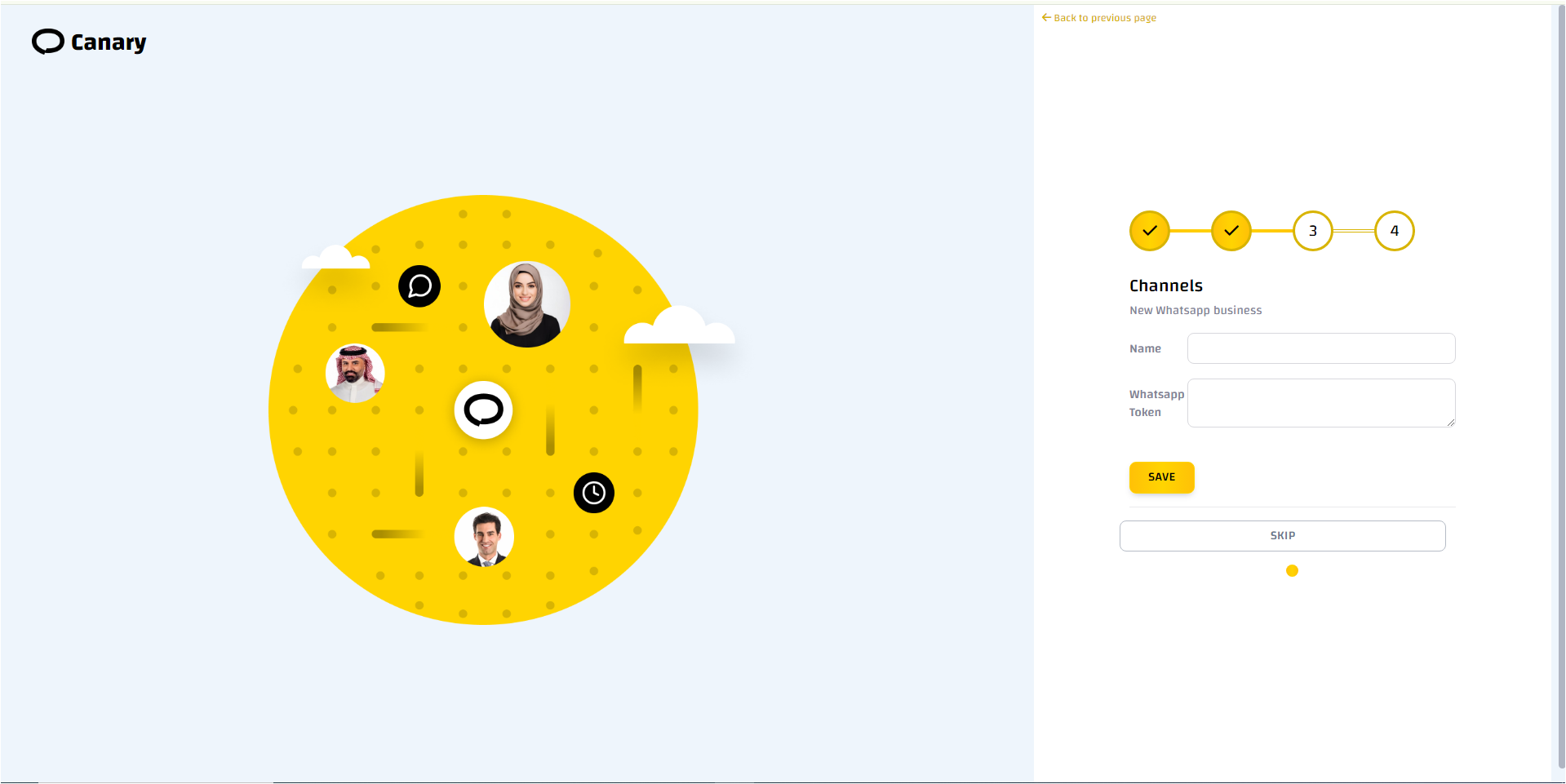
- Enter the channel name
- Enter the token provided by the Taqnyat team.
- Click "Save".
Email with Zoho:
- Enter the channel name
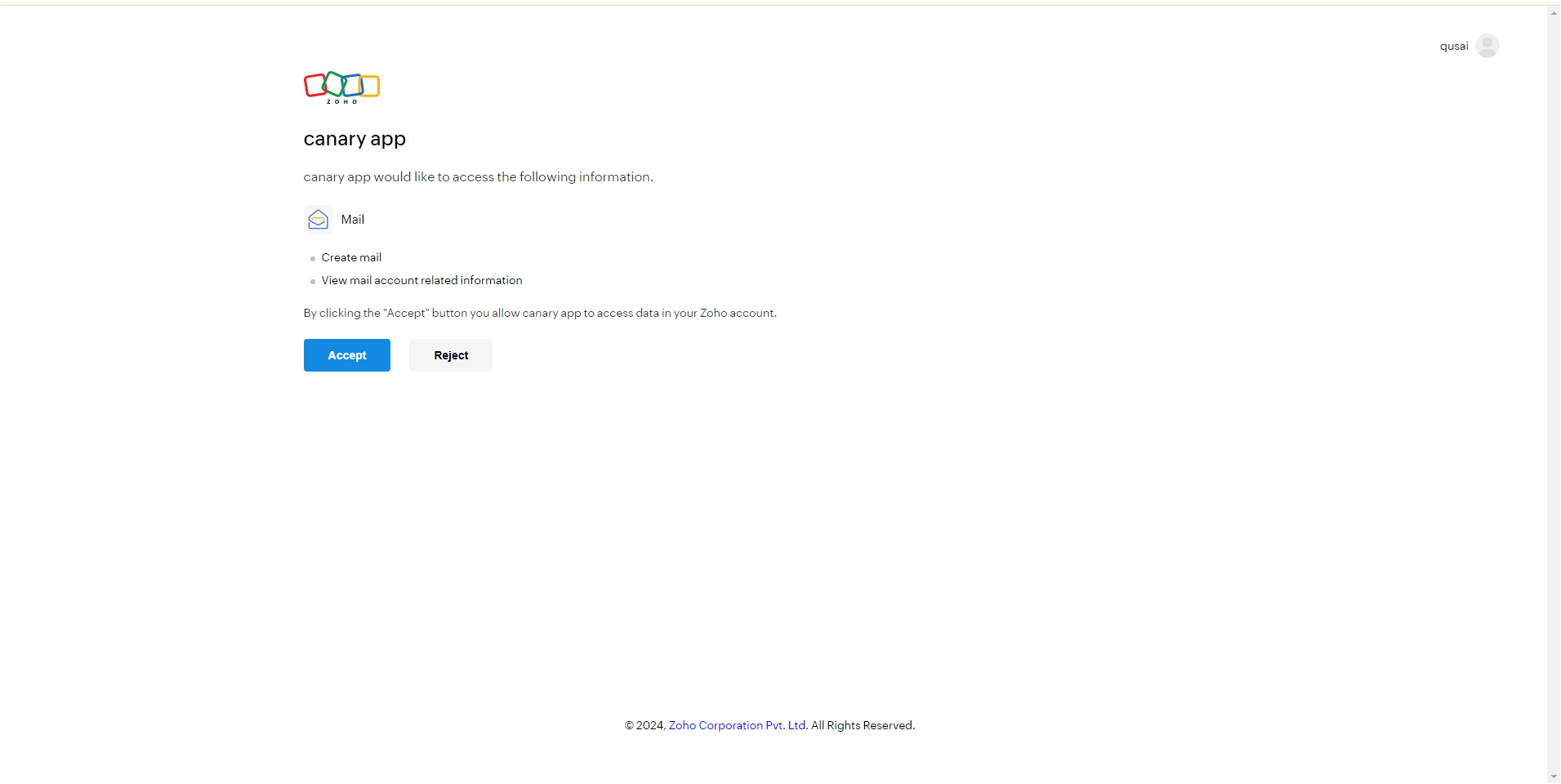
- Click "Accoun Authentication ".
- You will be redirected to the Zoho login page
- Log in to your Zoho account
- Agree to the permissions needed by Canary.
- After adding the channels, a screen will appear asking if you want to add templates. If you click "Yes", you will be directed to the templates page. If you click "Skip", you will be directed to the main page.
Creating an account using the ZId site:
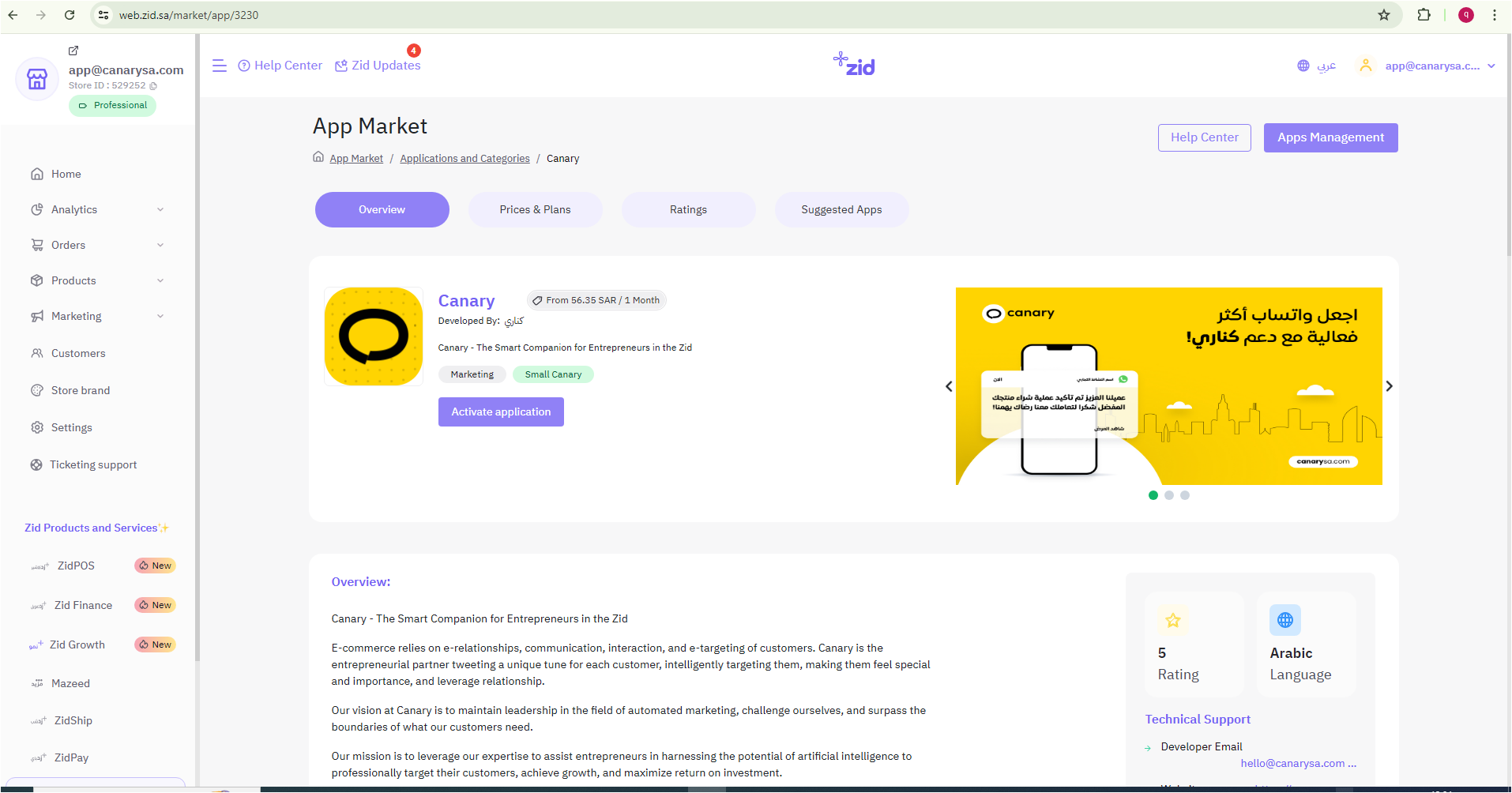
You can create your account through your ZId account by activating the Canary application available on the ZId platform through the following steps:
- Log in to your ZId account.
- Search for the Canary application in the ZId platform's app store
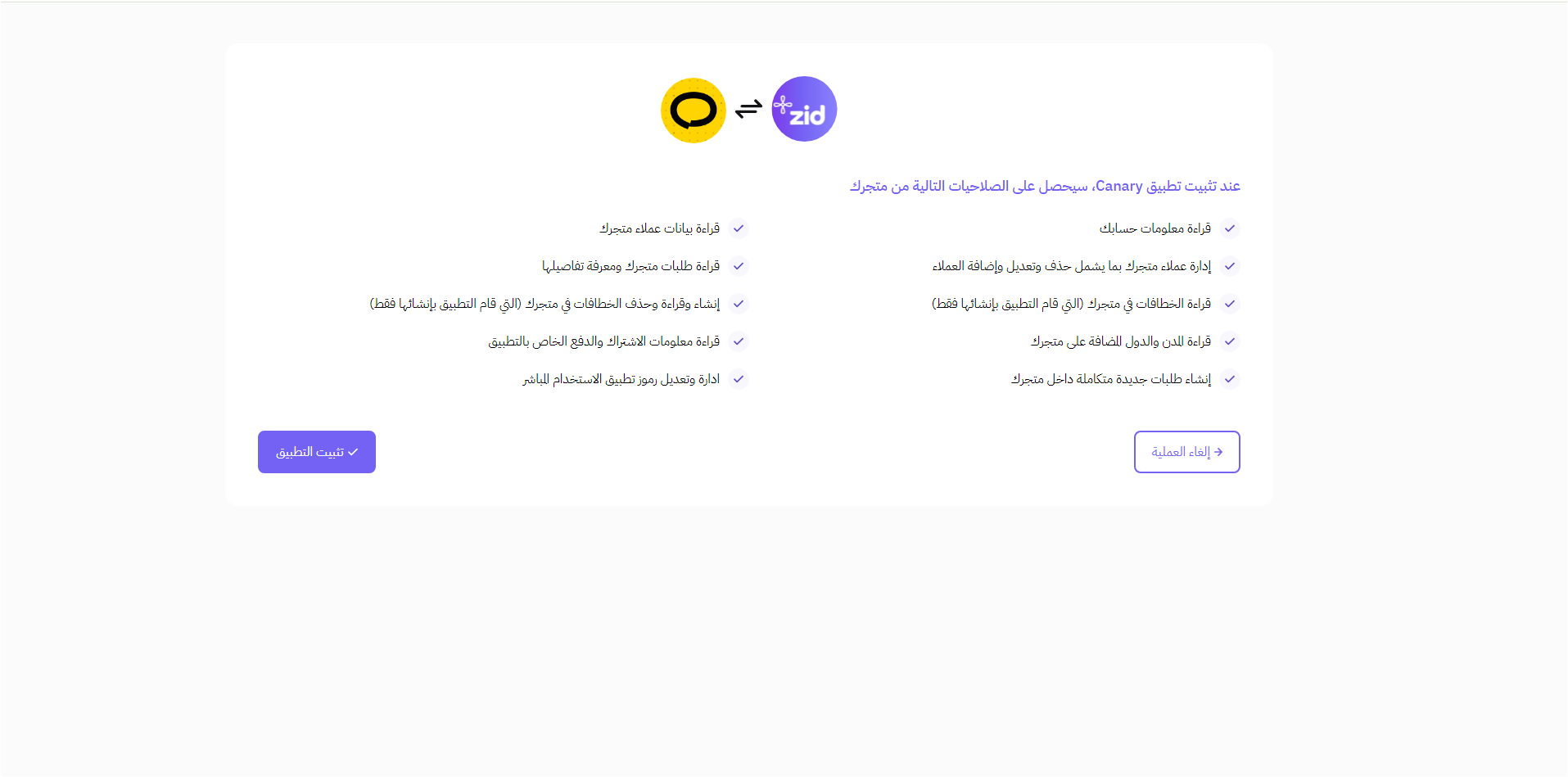
- Click "Activate app" then "Activate app".
- Click "Install app" to grant the necessary permissions.
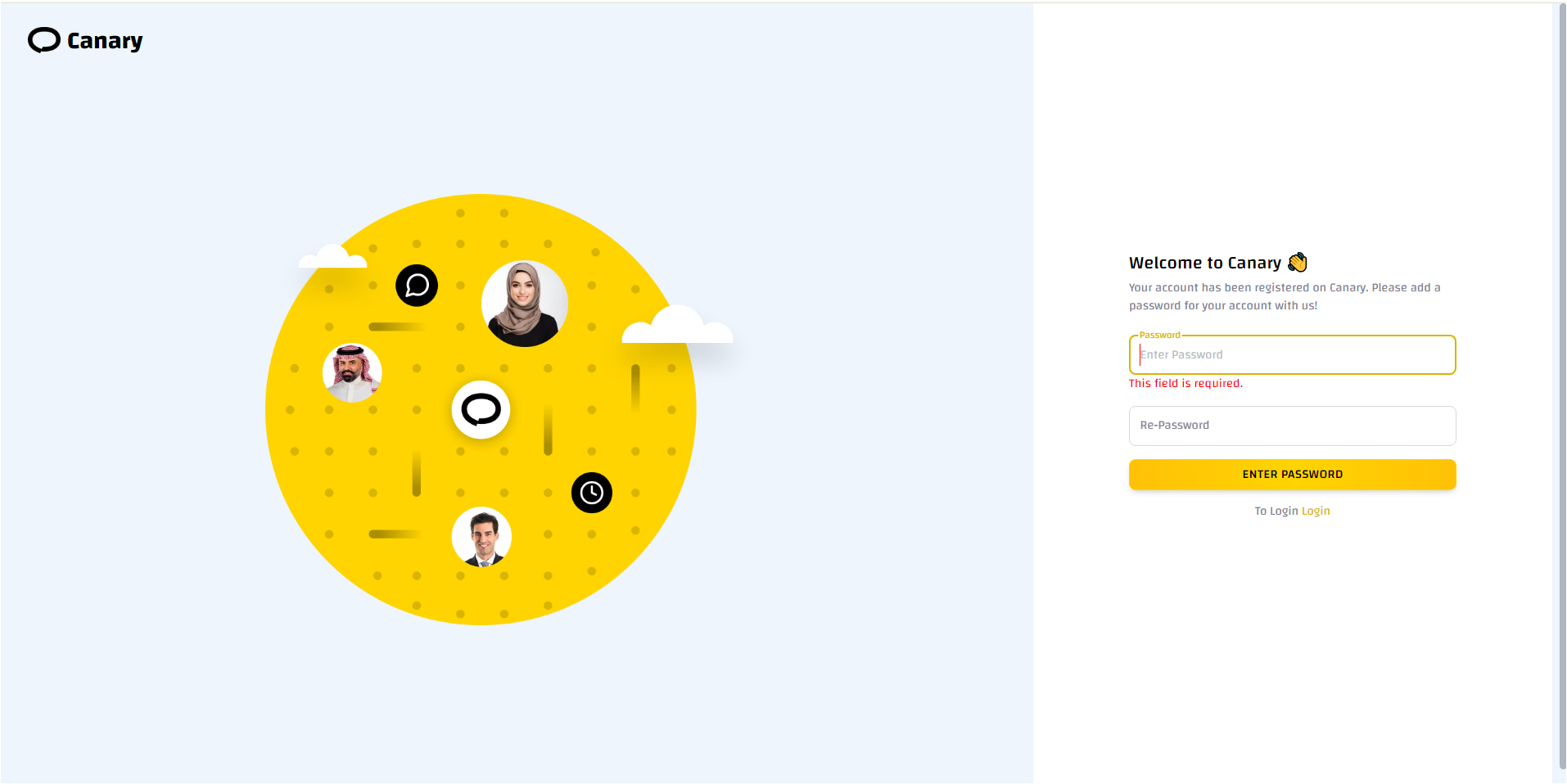
- Create your password and click "Enter password". Make sure not to share it with anyone.